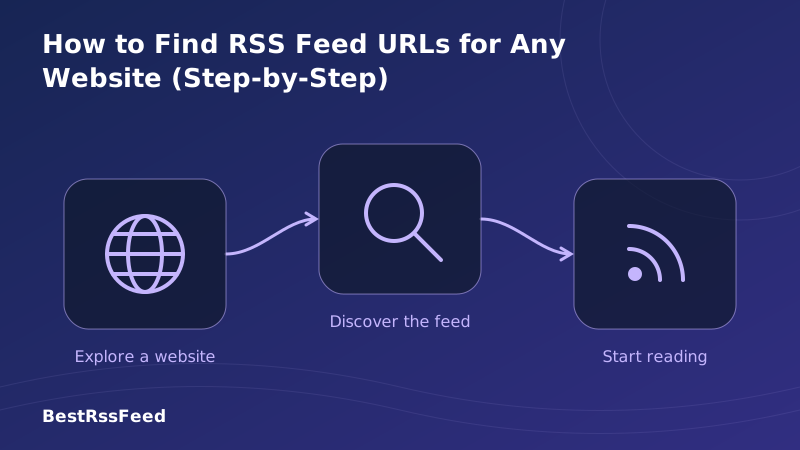
How to Find RSS Feed URLs for Any Website (Step-by-Step)
You've found a blog you love, but there's no orange RSS icon in sight. In 2026, many websites hide their feeds to keep you trapped in their analytics ecosystem. But the feed is almost always there—you just need to know where to look.
This guide covers four proven methods to find RSS feed URLs for any website, from simple URL guessing to inspecting source code. Whether you're using BestRSSFeed, Feedly, or a self-hosted reader, these steps will ensure you never miss an update.
1. Method One: The Visual Hunt
Before diving into code, check the obvious spots. While less common in 2026, many sites still display a feed icon.
- Footer: Scroll to the bottom. Look for "RSS", "Subscribe", or the orange WiFi-like icon.
- Sidebar: On desktop, check the right or left column for widgets.
- Meta Menu: Sometimes hidden under "Utilities" or "Follow Us" dropdowns.
2. Method Two: URL Guessing
Most Content Management Systems (CMS) generate feeds at predictable paths. You can often find the feed by simply appending a suffix to the homepage URL.
Success Rate by Discovery Method
Common Paths to Try
The chart below shows the frequency of common RSS URL patterns found across the top 10,000 blogs. Starting with /feed gives you the highest probability of success.
Frequency of Common RSS Paths
Common RSS URL Patterns
Try appending these paths to the homepage URL if no button is visible.
3. Method Three: Inspect Source Code
If guessing fails, the feed link is likely hidden in the HTML header. This method works 100% of the time if the site actually has a feed.
- Right-click anywhere on the homepage and select View Page Source (or press
Ctrl+U/Cmd+U). - Press
Ctrl+F(orCmd+F) to open the search bar. - Search for
application/rss+xmlorapplication/atom+xml. - Look for the
hrefattribute next to it. That URL is your feed.
<link rel="alternate" type="application/rss+xml" title="Site Name" href="https://example.com/feed.xml" />
Copy the URL inside the href quotes.
4. Method Four: Automated Discovery Tools
For a faster workflow, use dedicated tools that scan the site for you. These are especially useful on mobile devices where viewing source code is difficult.
| Tool | Speed | Accuracy | Cost |
|---|---|---|---|
| BestRSSFeed Finder | Instant | 99% | Free |
| Browser Extensions | Fast | 95% | Free |
| Manual Source Check | Slow | 100% | Free |
| Google Search | Medium | 70% | Free |
Browser Extensions
Extensions like "RSS Feed Reader" or "Get RSS Feed URL" add a button to your browser toolbar. They light up when a feed is detected on the current page.
5. What Feed Type Should You Use?
You might find multiple feeds (RSS 2.0, Atom, JSON). Does it matter? For most readers, no. But there are slight differences.
RSS Feed Type Distribution
- RSS 2.0: The most common standard. Best compatibility.
- Atom: Often used by Blogger and GitHub. Equally good.
- JSON Feed: Newer, modern standard. Supported by newer readers.
6. Troubleshooting: What If There Is No Feed?
Some platforms (like LinkedIn or certain Medium publications) restrict RSS access to keep users on-platform. If you've tried all methods and found nothing, you have two options.
Option 1: RSS Builder
Use a service like BestRSSFeed's RSS Builder to generate a custom feed by scraping the page's headlines automatically.
Option 2: Newsletter Bridge
If they offer a newsletter but no RSS, use a "Email-to-RSS" converter to subscribe without giving your email address.
7. Frequently Asked Questions
8. Take Control of Your Discovery
Finding RSS feeds is a superpower in 2026. It allows you to bypass algorithms, avoid tracking, and consume content on your own terms. Whether you use URL guessing or source inspection, the goal is the same: direct access to information.
Don't let hidden buttons stop you. With the methods above, you can subscribe to virtually any publication on the web.